Overview
DEVI Decrypt decrypts an Apple or iCloud provider return delivered as an OpenPGP file. It is for an examiner who already has the return and the key from the provider and needs to decrypt it on a Windows computer.
Apple and iCloud only. Other provider-return formats are not supported. DEVI Decrypt is an independent utility and is not affiliated with or endorsed by Apple Inc.
Validate it under your lab's own procedures.
Key capabilities
Apple and iCloud returns
Decrypts an Apple or iCloud OpenPGP return package, .gpg or .pgp.
Paste or load the key
Paste the key block from the provider's email or load a key file, then add the passphrase if the key asks for one.
The source is left alone
The encrypted file is read only. It is not renamed, moved, or overwritten.
A PDF verification record
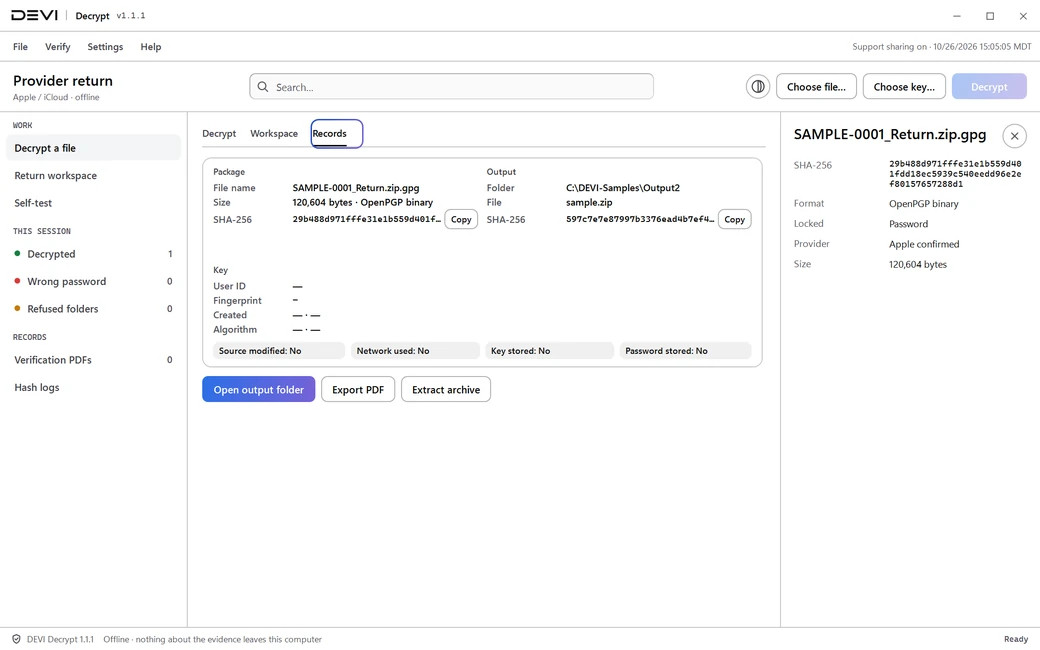
Exports a record named by the full source SHA-256, with the source and output hashes. It never holds the key, the passphrase, or the decrypted contents.
Return workspace
Drop a whole Apple return and its key. Every OpenPGP file is decrypted and unpacked into one folder, then browsed and searched by category.
A hash log of every output
The workspace lists the SHA-256 of every source and output file, with a verification record for each decrypted file.
A built-in self-test
Checks decryption against an embedded synthetic package.
Offline
Decryption runs on this computer and never uses the network.
Compared with doing it by hand
The same job, done two common ways. DEVI Decrypt does not replace your lab's procedures; it keeps each step recorded and repeatable.
| DEVI Decrypt | Command-line decryption | |
|---|---|---|
| Add the key | Paste it from the provider's email, or load a key file | Import it into a keyring by command |
| The original file | Read only: not renamed, moved, or overwritten | Depends on the command typed |
| Check the output | Hashed and checked before it is kept | Hash it yourself |
| A whole return | Every file decrypted, unpacked into one folder, and sorted by category | One file at a time |
| A record for the case file | A PDF verification record with the source and output hashes | Notes you write |
| The key and passphrase | Held in memory for the operation and not saved | Kept in the keyring until you remove them |
How it works
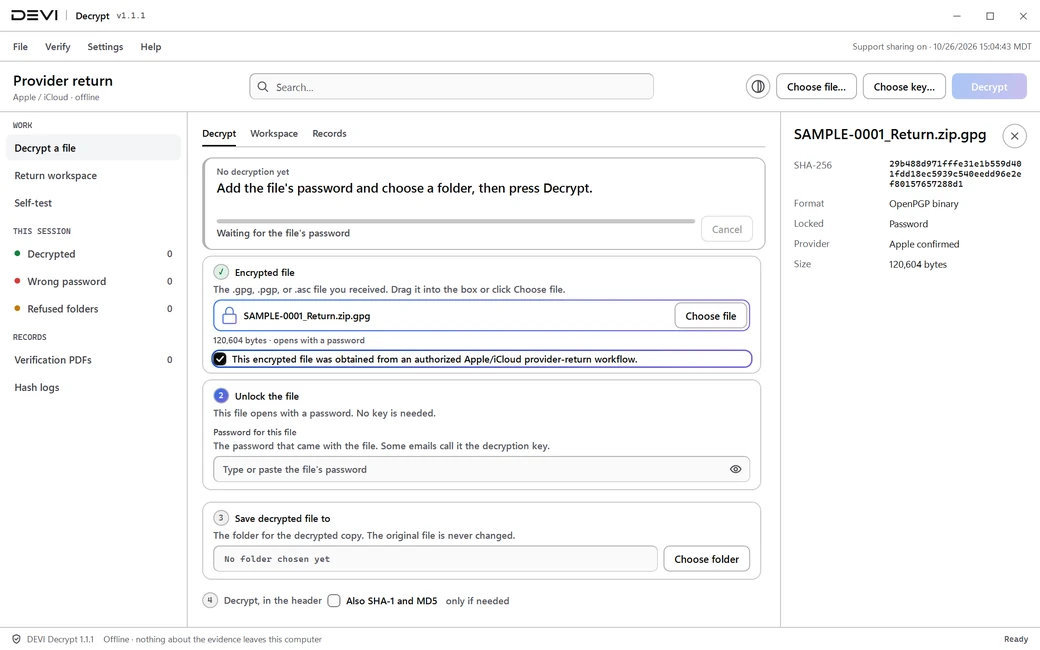
- Drop the .gpg or .pgp file, or choose it, and confirm it came from an authorized Apple or iCloud return.
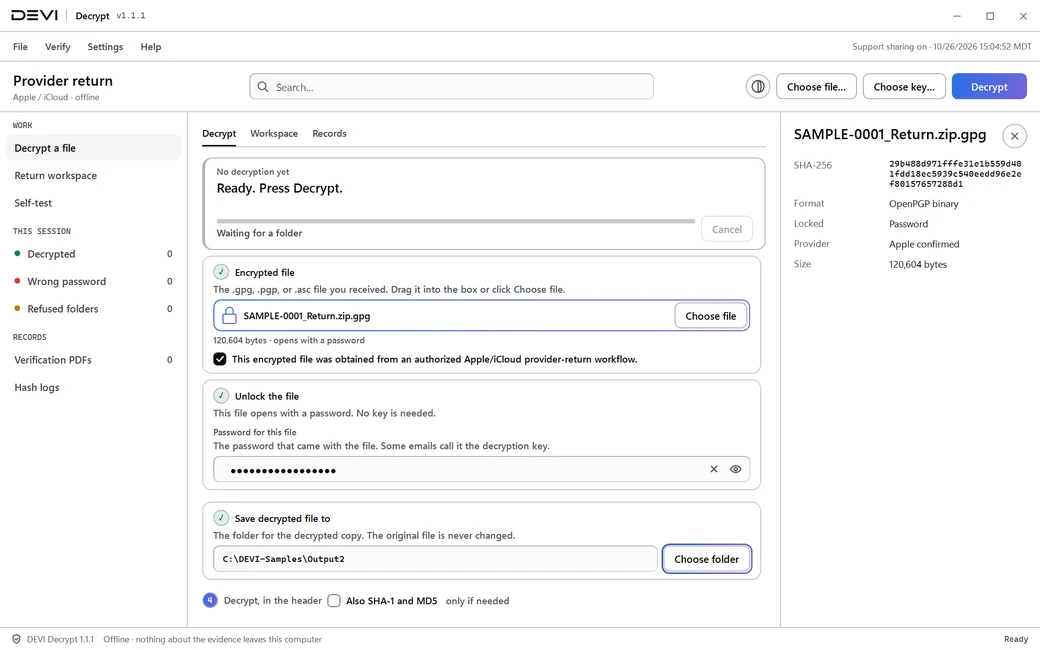
- Paste the key from the provider's key email, or load a key file, and add the passphrase if needed.
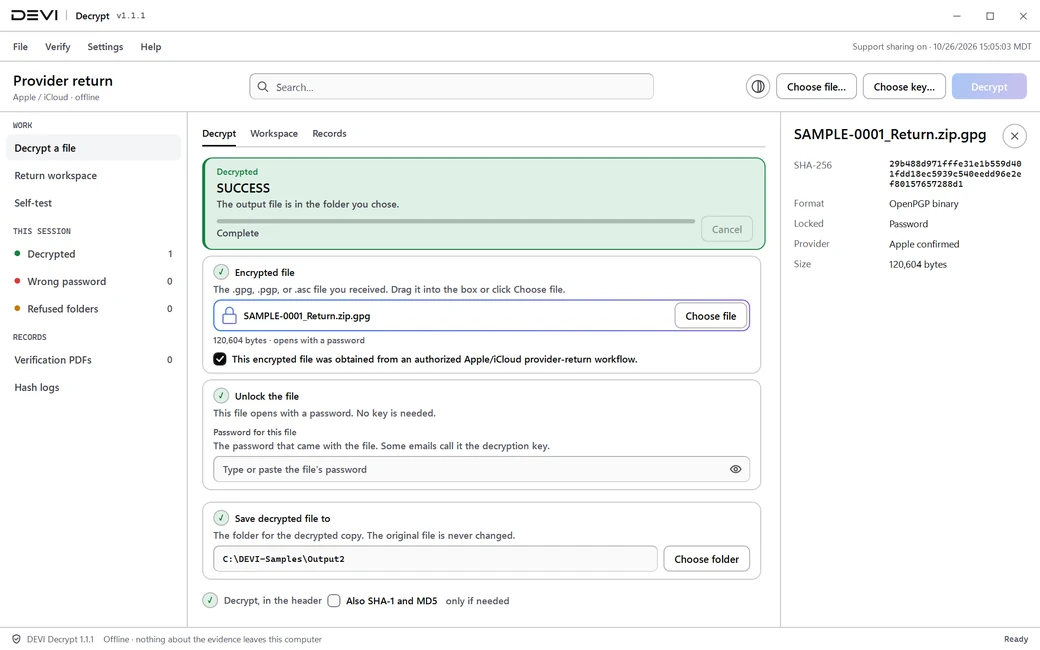
- Choose an output folder and decrypt. The output is hashed and checked before it is kept.
- Export the PDF verification record. If the output is an archive, extract it from the app.
For a whole return, open the return workspace instead: drop the return folder and the key, and every file is decrypted, unpacked, hashed, and sorted by category from its file type and folder name. The tool does not open or interpret the content.
A package with no integrity protection is rejected before any output is written. An expired key shows a warning and waits for you to continue, and the record notes the expiration.
Network use
Decryption never uses the network and does not send data anywhere. The only request the app makes is the optional update check: an HTTPS request for one signed version file from the DEVI download host. It is sent when you choose Check for updates, or each time the app opens if you turn that on. It is off by default, and it sends no returns, keys, file names, or hashes.
If you choose to download an update, it starts only after you confirm it, and the app checks its SHA-256 against the signed version file before keeping it. The key and the passphrase are held in memory for the operation and are not saved. This site never receives your returns, keys, file names, or hashes.
Check it yourself
Each line below points to something you can check on this page or on your own computer.
Signed Windows builds
Authenticode-signed through Microsoft Artifact Signing, with a timestamp.
System requirementsA SHA-256 for every file
Each published file has its SHA-256 on this page, with the Windows commands to check it.
Verify your downloadA check built in
Checks decryption against an embedded synthetic package.
Key capabilitiesNetwork use, stated
Offline: decryption never uses the network. The only request is an optional update check.
How it worksv1.0.3, dated
Released 10/07/2026. This page shows what changed in it.
What's newYour lab's procedures
Validate it under your lab's own procedures.
Trust and Security
System requirements
| Operating system | Windows 11 (x64) |
|---|---|
| Runtime | Included in the download. No separate .NET install is needed. |
| Network | Not needed to decrypt. Used only for the optional update check. |
| Input | An Apple or iCloud OpenPGP provider return and its private key |
| Installer | 49 MB, per user, no administrator rights needed |
| Portable zip | 65 MB, no install needed |
| Code signing | Authenticode-signed through Microsoft Artifact Signing, with a timestamp. Windows can still show a SmartScreen warning for a newly signed release; that is reputation, not a failed signature. |
Inputs and outputs
| Reads | An Apple or iCloud OpenPGP provider return (.gpg or .pgp), or a whole return folder |
|---|---|
| Key | The key block pasted from the provider's email, or a key file, and its passphrase if needed |
| Writes | The decrypted output, in a folder that does not hold the source |
| Checks | The output is hashed and checked before it is kept |
| Record | A PDF verification record with the source and output hashes, never the key or the passphrase |
Questions
Which returns does it open?
Apple and iCloud returns delivered as OpenPGP files. Other provider-return formats are not supported.
Is the key saved?
No. The key and the passphrase are held in memory for the operation and are not saved. The record never holds the key, the passphrase, or the decrypted contents.
Is the original return changed?
No. The encrypted file is read only. It is not renamed, moved, or overwritten.
Is it made by Apple?
No. DEVI Decrypt is an independent utility and is not affiliated with or endorsed by Apple Inc.
Download
Downloads are for approved accounts. Create an account, then request this tool from your account; each tool is approved on its own. Tool release alerts start once a tool is approved for your account. You can turn them off any time.
How to get a tool
- Create an account. Sign up at deviops.app with the email you want to use for DEVI.
- Complete your profile. Who you are (law enforcement, prosecution, defense or contractor), your agency or firm, your role, and a supervisor or point of contact.
- Request each tool. Give a short reason and accept the license agreement. Each tool is approved on its own.
- The DEVI Ops Team reviews it. We email the decision to your sign-in address.
- Who qualifies
- Verified law enforcement, prosecution, defense and contractor examiners.
- Review time
- We review every request, usually within the same business day.
- Cost
- Each approved account gets a monthly allowance that refills each month. Opening and viewing evidence never uses it.
Questions
Is there a cost to request a tool?
No cost to request. Each approved account gets a monthly allowance that refills each month. Opening and viewing evidence never uses it.
Why is an account needed?
The tools are licensed to approved examiners only. Your account is how DEVI Ops confirms who you are, records the license you accepted, and checks your approval on every download.
Does DEVI see my case data?
No. The tools work offline on your computer. Your evidence, keys, file names and hashes are never sent to DEVI.
What if SmartScreen warns me?
Check the file's SHA-256 on its tool page first. Windows can still show a SmartScreen warning for a newly signed release; that is reputation, not a failed signature. If it does, choose More info, then Run anyway.
Which Windows versions are supported?
Windows x64. DEVI Validate and DEVI Registry run on Windows (x64), and DEVI Decrypt needs Windows 11 (x64). The .NET runtime is included in each download.
Can I share a license?
No. A license is for you, under the account that was approved. Each examiner requests access with their own account.
SHA-2569c83c5cedfb161bcef37240387fa847648434aa9d96d8628429af8539a71f779
Windows Setup installer (win-x64), per user, no administrator rights needed. The installer and the app are Authenticode-signed. Check the SHA-256 below before you run it. Windows can still show a SmartScreen warning for a newly signed release; that is reputation, not a failed signature. If it does, choose More info, then Run anyway.
SHA-256bd4c1d2ef8c75a397d846cd7e554d39620548e5abfea7052dfd4907deabcd39d
Portable zip (win-x64). No install needed. Unzip the whole folder and open app\DEVI-Decrypt.exe. The app is Authenticode-signed. Check the SHA-256 below before you run it. Windows can still show a SmartScreen warning for a newly signed release; that is reputation, not a failed signature. If it does, choose More info, then Run anyway.
Verify your download
DEVI Decrypt 1.0.3 is published as an installer and as a portable zip. Each file has its own SHA-256. Check the file before you run it.
- Download the file from this page after you sign in.
- Open PowerShell or Command Prompt in the folder that holds it.
- Run one of the commands below and compare the printed hash with the published value.
- If the values differ, delete the file and download it again.
Setup (win-x64)
The published SHA-256 for DEVI-Decrypt-Setup-1.0.3-win-x64.exe is 9c83c5cedfb161bcef37240387fa847648434aa9d96d8628429af8539a71f779. A checksum file is published beside the file.
On Windows, either command prints a hash of the file you downloaded. Compare it with the value above.
Get-FileHash .\DEVI-Decrypt-Setup-1.0.3-win-x64.exe -Algorithm SHA256certutil -hashfile DEVI-Decrypt-Setup-1.0.3-win-x64.exe SHA256Windows Setup installer (win-x64), per user, no administrator rights needed. The installer and the app are Authenticode-signed. Check the SHA-256 below before you run it. Windows can still show a SmartScreen warning for a newly signed release; that is reputation, not a failed signature. If it does, choose More info, then Run anyway.
Portable (win-x64)
The published SHA-256 for DEVI-Decrypt-1.0.3-win-x64.zip is bd4c1d2ef8c75a397d846cd7e554d39620548e5abfea7052dfd4907deabcd39d. A checksum file is published beside the file.
On Windows, either command prints a hash of the file you downloaded. Compare it with the value above.
Get-FileHash .\DEVI-Decrypt-1.0.3-win-x64.zip -Algorithm SHA256certutil -hashfile DEVI-Decrypt-1.0.3-win-x64.zip SHA256Portable zip (win-x64). No install needed. Unzip the whole folder and open app\DEVI-Decrypt.exe. The app is Authenticode-signed. Check the SHA-256 below before you run it. Windows can still show a SmartScreen warning for a newly signed release; that is reputation, not a failed signature. If it does, choose More info, then Run anyway.
More about publishing and reporting a vulnerability is on Trust and Security.
What’s new
v1.0.3
- Decryption and hashing work as in 1.0.2. Installed 1.0.2 copies are offered 1.0.3 through Check for updates.
- A wrong password says which one was wrong, for this file or for your private key, writes nothing, and empties the box so you can type it again.
- Step 2 shows only the boxes the chosen file needs. A file locked with a password shows one box, Password for this file. A file locked to a private key shows Your private key, and Password for your private key appears only when the loaded key has its own password. The two password boxes are never shown together.
- The eye button shows and hides a password and keeps what you typed. In 1.0.2 the Show button emptied the box. Each password box has one X that clears it.
- Every box on every screen has a plain label above it, a one-line gray hint under it, and placeholder text inside it.
- A text field you are typing in shows one 2px blue-to-purple border, the same colors as deviops.app.
Resources
- One-page sheet (PDF)DEVI Decrypt on one printable page, in this page's words.
- Tools tourEach tool's four steps, one after another.
- Trust and SecurityHow files are signed and published, and how to report a vulnerability.
- DEVI ValidateProve the evidence has not changed.
- DEVI RegistryKnow where an app keeps its data.