Overview
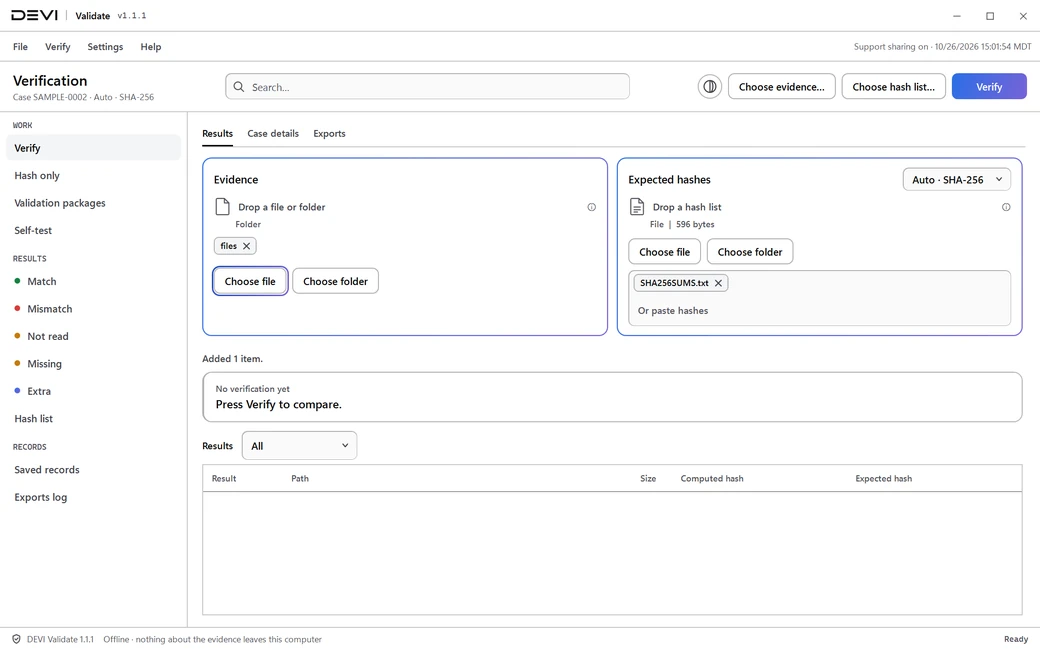
DEVI Validate checks that evidence files still match the hashes another tool or process recorded. It runs on a Windows computer, hashes and verifies without a network connection, and reads the evidence without changing it.
Validate it under your lab's own procedures.
Key capabilities
SHA-256, SHA-1, and MD5
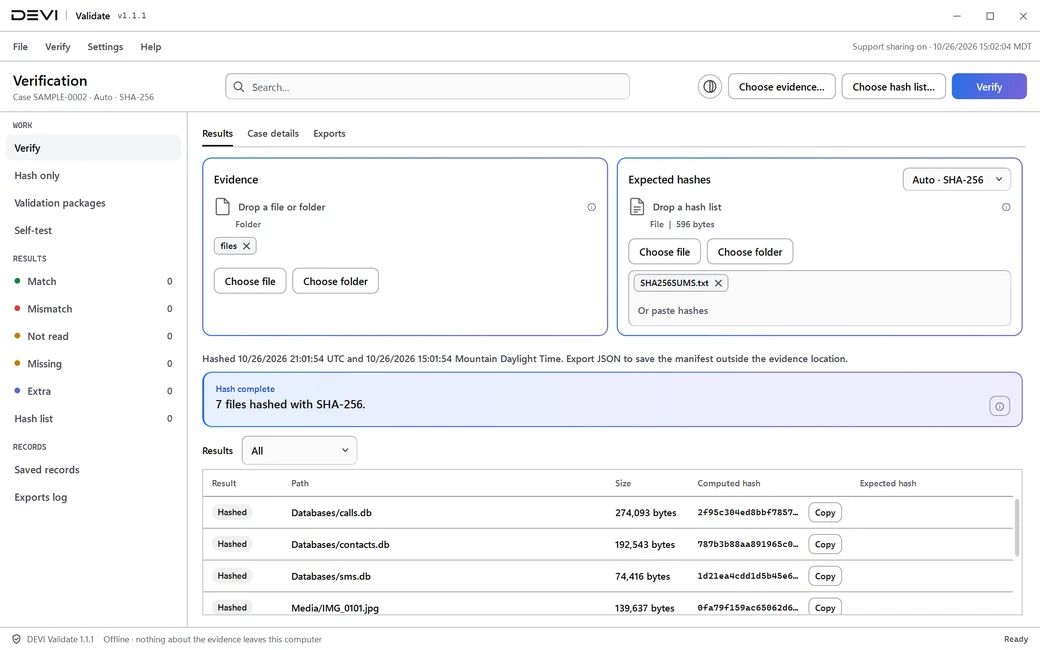
Recomputes hashes with any of the three algorithms.
Sum files, CSV, and FTK Imager logs
Reads recorded values from these formats.
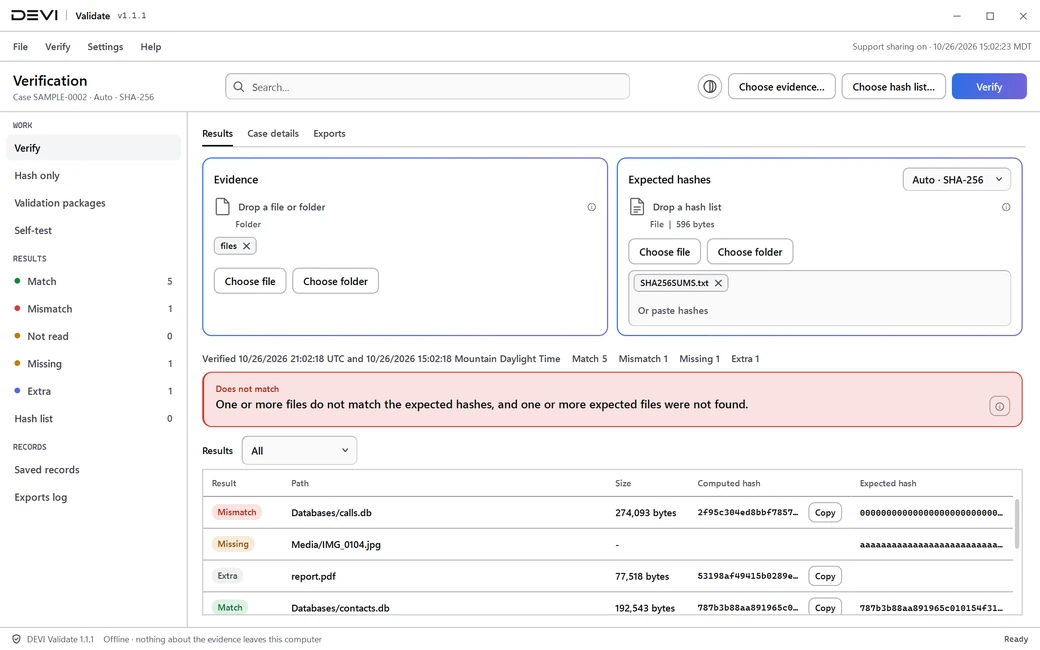
Match, Mismatch, Missing, and Extra results
Every file is reported with one of these four results.
A PDF verification record named by hash
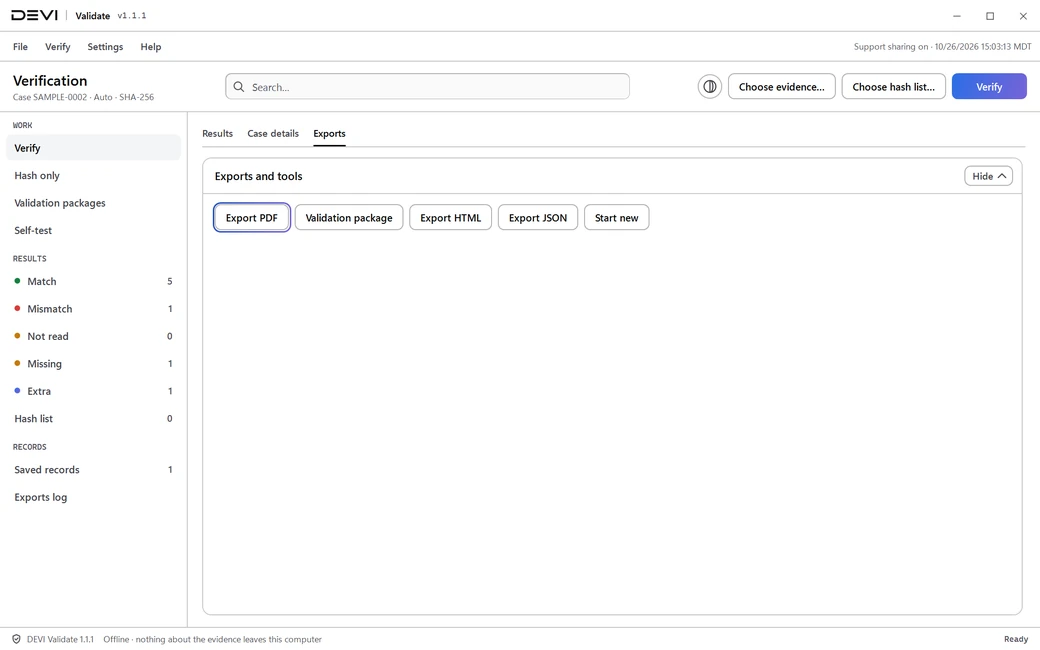
Exports the result of a verification as a PDF.
A validation package
One folder and zip with the JSON record, the PDF, and a manifest of hashes, tool version, case details, and UTC and local times. The PDF carries a QR code and a short verification code.
Offline package check
Re-verifies a package later, in the app or with the command-line tool, without a network connection.
A built-in self-test
A self-test runs from inside the app.
Offline and read-only
Hashing and verification work without a network connection, and evidence is opened for reading only.
Compared with doing it by hand
The same job, done three common ways. DEVI Validate does not replace your lab's procedures; it keeps each step recorded and repeatable.
| DEVI Validate | Hashing files by hand | A spreadsheet of hashes | |
|---|---|---|---|
| Re-hash a whole folder | Every file, in one run | One command per file | Hashes are typed or pasted in |
| Compare with the recorded values | Each file marked Match, Mismatch, Missing, or Extra | By reading the two values | With formulas you build |
| Spot a missing or added file | Listed as Missing or Extra | Only if you compare the file lists | Only if you compare the file lists |
| A record for the case file | A PDF verification record named by hash | Notes you write | The sheet you save |
| Check the record again later | A validation package re-verifies offline | Repeat every step | Repeat every step |
How it works
Forensic integrity comes from comparing two independent records of the same files.
- Choose the evidence folder and the hash file another tool or process recorded.
- DEVI Validate recomputes each hash on this computer, offline.
- It compares each new hash with the recorded value and reports Match, Mismatch, Missing, or Extra.
- Export the PDF verification record, named by hash, or create a validation package that can be re-verified later.
This site never receives your evidence, file names, or hashes.
Network use
Hashing and verification never use the network. The only request the app makes is the optional update check: an HTTPS request for a signed version file from the DEVI download host. It is sent when you choose Check for updates, or each time the app opens if you turn that on. It is off by default.
The update check sends the app name and version and nothing else. No evidence, file names, hashes, case or examiner details, or account information leave the computer. As with any web request, the download host sees your IP address. There is no telemetry or analytics in the app.
If you choose to download an update, the app fetches the installer or zip from the same host and checks its SHA-256 against the signed version file before keeping it. Nothing is installed until you choose to.
Check it yourself
Each line below points to something you can check on this page or on your own computer.
Signed Windows builds
Authenticode-signed through Microsoft Artifact Signing, with a timestamp.
System requirementsA SHA-256 for every file
Each published file has its SHA-256 on this page, with the Windows commands to check it.
Verify your downloadA check built in
A self-test runs from inside the app.
Key capabilitiesNetwork use, stated
Offline: hashing and verification never use the network. The only request is an optional update check.
How it worksv1.0.3, dated
Released 10/07/2026. This page shows what changed in it.
What's newYour lab's procedures
Validate it under your lab's own procedures.
Trust and Security
System requirements
| Operating system | Windows (x64) |
|---|---|
| Runtime | Included in the download. No separate .NET install is needed. |
| Network | Not needed to verify evidence. Used only for the optional update check. |
| Installer | 71 MB |
| Portable zip | 95 MB, no install needed |
| Code signing | Authenticode-signed through Microsoft Artifact Signing, with a timestamp. Windows can still show a SmartScreen warning for a newly signed release; that is reputation, not a failed signature. |
Inputs and outputs
| Reads | An evidence folder or files, and the hash list recorded earlier |
|---|---|
| Hash lists | Sum files, CSV files, and FTK Imager logs, or a pasted hash |
| Algorithms | SHA-256, SHA-1, and MD5 |
| Results | Match, Mismatch, Missing, or Extra for every file |
| Writes | A PDF verification record named by hash, or a validation package (JSON record, PDF, and manifest) as a folder and zip |
Questions
Does it change the evidence?
No. Evidence is opened for reading only, and hashing and verification work without a network connection.
Which hash lists can it read?
Sum files, CSV files, and FTK Imager logs. A hash you paste stays beside the hash files you chose.
Can a check be repeated later?
Yes. A validation package holds the JSON record, the PDF, and a manifest, and it re-verifies later in the app or with the command-line tool, without a network connection.
How should my lab validate it?
Validate it under your lab's own procedures.
Download
Downloads are for approved accounts. Create an account, then request this tool from your account; each tool is approved on its own. Tool release alerts start once a tool is approved for your account. You can turn them off any time.
How to get a tool
- Create an account. Sign up at deviops.app with the email you want to use for DEVI.
- Complete your profile. Who you are (law enforcement, prosecution, defense or contractor), your agency or firm, your role, and a supervisor or point of contact.
- Request each tool. Give a short reason and accept the license agreement. Each tool is approved on its own.
- The DEVI Ops Team reviews it. We email the decision to your sign-in address.
- Who qualifies
- Verified law enforcement, prosecution, defense and contractor examiners.
- Review time
- We review every request, usually within the same business day.
- Cost
- Each approved account gets a monthly allowance that refills each month. Opening and viewing evidence never uses it.
Questions
Is there a cost to request a tool?
No cost to request. Each approved account gets a monthly allowance that refills each month. Opening and viewing evidence never uses it.
Why is an account needed?
The tools are licensed to approved examiners only. Your account is how DEVI Ops confirms who you are, records the license you accepted, and checks your approval on every download.
Does DEVI see my case data?
No. The tools work offline on your computer. Your evidence, keys, file names and hashes are never sent to DEVI.
What if SmartScreen warns me?
Check the file's SHA-256 on its tool page first. Windows can still show a SmartScreen warning for a newly signed release; that is reputation, not a failed signature. If it does, choose More info, then Run anyway.
Which Windows versions are supported?
Windows x64. DEVI Validate and DEVI Registry run on Windows (x64), and DEVI Decrypt needs Windows 11 (x64). The .NET runtime is included in each download.
Can I share a license?
No. A license is for you, under the account that was approved. Each examiner requests access with their own account.
SHA-256f9359d1e126ad72bbc8cda8e8cfc9407d15258c0d905e922cacf780e5c865ecc
Windows Setup installer (win-x64). The installer and the app are Authenticode-signed. Check the SHA-256 below before you run it. Windows can still show a SmartScreen warning for a newly signed release; that is reputation, not a failed signature. If it does, choose More info, then Run anyway.
SHA-25642a990c2071ea71851213f6906e963cdb506b2bd065a92c50ce1bed9b2127ba8
Portable zip (win-x64). No install needed. Unzip the whole folder and open app\DEVI-Validate.exe. The app is Authenticode-signed. Check the SHA-256 below before you run it. Windows can still show a SmartScreen warning for a newly signed release; that is reputation, not a failed signature. If it does, choose More info, then Run anyway.
Verify your download
DEVI Validate 1.0.3 is published as an installer and as a portable zip. Each file has its own SHA-256. Check the file before you run it.
- Download the file from this page after you sign in.
- Open PowerShell or Command Prompt in the folder that holds it.
- Run one of the commands below and compare the printed hash with the published value.
- If the values differ, delete the file and download it again.
Setup (win-x64)
The published SHA-256 for DEVI-Validate-Setup-1.0.3-win-x64.exe is f9359d1e126ad72bbc8cda8e8cfc9407d15258c0d905e922cacf780e5c865ecc. A checksum file is published beside the file.
On Windows, either command prints a hash of the file you downloaded. Compare it with the value above.
Get-FileHash .\DEVI-Validate-Setup-1.0.3-win-x64.exe -Algorithm SHA256certutil -hashfile DEVI-Validate-Setup-1.0.3-win-x64.exe SHA256Windows Setup installer (win-x64). The installer and the app are Authenticode-signed. Check the SHA-256 below before you run it. Windows can still show a SmartScreen warning for a newly signed release; that is reputation, not a failed signature. If it does, choose More info, then Run anyway.
Portable (win-x64)
The published SHA-256 for DEVI-Validate-1.0.3-win-x64.zip is 42a990c2071ea71851213f6906e963cdb506b2bd065a92c50ce1bed9b2127ba8. A checksum file is published beside the file.
On Windows, either command prints a hash of the file you downloaded. Compare it with the value above.
Get-FileHash .\DEVI-Validate-1.0.3-win-x64.zip -Algorithm SHA256certutil -hashfile DEVI-Validate-1.0.3-win-x64.zip SHA256Portable zip (win-x64). No install needed. Unzip the whole folder and open app\DEVI-Validate.exe. The app is Authenticode-signed. Check the SHA-256 below before you run it. Windows can still show a SmartScreen warning for a newly signed release; that is reputation, not a failed signature. If it does, choose More info, then Run anyway.
More about publishing and reporting a vulnerability is on Trust and Security.
What’s new
v1.0.3
- Hashes are computed and compared as in 1.0.2. Records and packages show version 1.0.3. Installed 1.0.0, 1.0.1, and 1.0.2 copies are offered 1.0.3 through Check for updates.
- Evidence and Expected hashes each take more than one file or folder. Each item you add shows as its own chip with its own X, and the X removes only that item.
- Choosing or dropping several files or folders at once adds all of them.
- A hash you paste stays beside the hash files you chose.
- Escape clears the field you are in and leaves the other field as it is.
- A text field you are typing in shows one 2px blue-to-purple border, the same colors as deviops.app.
Resources
- One-page sheet (PDF)DEVI Validate on one printable page, in this page's words.
- Tools tourEach tool's four steps, one after another.
- Trust and SecurityHow files are signed and published, and how to report a vulnerability.
- DEVI DecryptOpen Apple and iCloud returns offline.
- DEVI RegistryKnow where an app keeps its data.